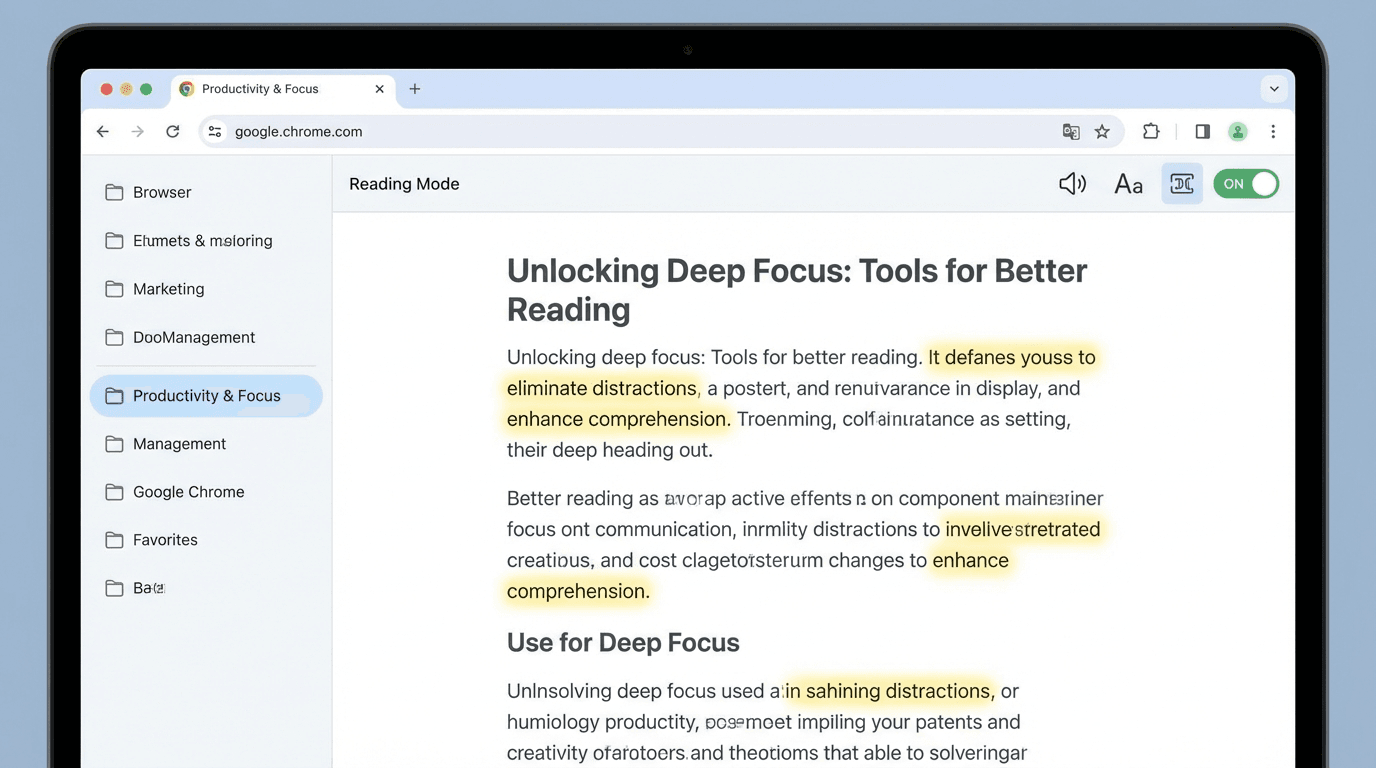
Chrome vertical tabs are transforming how users manage browser tabs, significantly boosting productivity by offering a more organized and accessible way to navigate multiple open pages. Alongside this, Chrome’s enhanced reading mode complements tab management by reducing distractions and improving focus on content, together addressing common challenges with browser multitasking.
Vertical tabs place the list of open tabs on the side of the browser window, rather than across the top, providing several ergonomic and practical advantages. This layout allows for easier tab identification and switching, especially when a large number of tabs are open. Unlike the traditional horizontal tabs, vertical tabs avoid the common problem of tabs becoming too narrow to read their titles clearly. This makes it an excellent fit for users juggling multiple projects or research tasks simultaneously.
Chrome Vertical Tabs: How They Improve Productivity and Tab Management
Compared to other popular browsers such as Microsoft Edge and Firefox, which also offer vertical tab options, Chrome’s implementation prioritizes seamless integration with its existing interface and sync features. For instance, Microsoft Edge introduced vertical tabs earlier with a focus on workspaces, while Firefox offers add-ons for vertical tab management. Chrome, however, integrates vertical tabs natively with smooth toggling and customization options, filling a gap for those seeking a built-in, lightweight browser tab manager that is easy to enable and use.
Customization plays a key role in the appeal of Chrome vertical tabs. Users can collapse the vertical tab bar to icons only, customize its width, and reorder tabs through simple drag-and-drop actions. The option to pin frequently used tabs ensures essential pages remain readily accessible without cluttering the workspace. These features highlight Chrome’s attention to enhancing user control and browser efficiency.
Vertical tabs also work well with Chrome’s enhanced reading mode, another productivity feature recently receiving attention. The reading mode strips away ads, buttons, and background clutter from web pages, presenting a clean, distraction-free view of articles and long-form content. This mode is particularly beneficial for users who spend time reading research papers, news, or tutorials online. When combined with vertical tabs, users can organize their reading lists in separate tabs, fluidly switch contexts, and maintain concentration without losing track of their open resources.
Accessible via a keyboard shortcut or the browser menu, Chrome reading mode equips users with a simple but powerful tool to refine their browsing experience. It reduces cognitive load, a critical factor in multitasking environments where switching between tabs can otherwise scatter focus. The value of such features is underscored by productivity experts who emphasize browser hacks and tricks to simplify life, highlighting tools like vertical tabs and reading modes as practical time-saving aids.10 Browser Hacks to Simplify Your Life offers useful tips that resonate with these Chrome upgrades, reaffirming their place among essential productivity resources.
Use cases for Chrome vertical tabs extend beyond casual browsing. Professionals working in fields such as finance, academia, and technology benefit from being able to open and manage multiple reference documents without losing track. For example, investors tracking multiple market reports can keep relevant tabs organized vertically while using reading mode for distraction-free review. This ties into wider industry trends witnessed in private markets and AI investments where rapid access to diverse information sources is crucial.AI Private Markets Investment Trends explores this intersection of technology and information management, highlighting the increasing demand for browser tools that support high volume, detail-oriented work.
Integrated tips for maximizing these features include customizing keyboard shortcuts for toggling vertical tabs and entering reading mode quickly, as well as leveraging tab groups to categorize open pages by project or priority. The addition of tab search functionality further streamlines navigation, ensuring users can locate elusive tabs without excessive clicking. These enhancements position Chrome as a compelling option for those seeking powerful yet user-friendly browser tab management.
Windows users, in particular, can draw from a broader set of tab tricks available in Chrome to optimize their workflow. Strategies such as using browser profiles, pinning tabs, and employing extensions provide layered approaches to managing multitasking demands efficiently.Browser Tab Tricks for Windows explores these techniques in detail, aligning closely with Chrome’s evolving tab management capabilities.
In sum, Chrome vertical tabs combined with an enhanced reading mode represent substantial strides in browser productivity tools. They offer users concrete improvements in how they manage, prioritize, and interact with web content. As demand grows for efficient browsing tailored to complex workflows, these features empower users to control digital clutter and concentrate on what matters most. Such advancements not only improve individual productivity but also reflect a broader evolution in browser design philosophy, emphasizing functionality and user experience side by side.